 Feedback
How to get a color palette from an image on a Mac
Whether you're matching a brand color or building a palette from a photo, here's how to grab colors on a Mac and get them into your tools.
Pick a single color
macOS includes Digital Color Meter (in Applications › Utilities), which shows the values under the pointer. In Feedback, press ⌥⇧C from any app, click a color, and its hex code is copied and added to your palette.
Pull a palette from an image
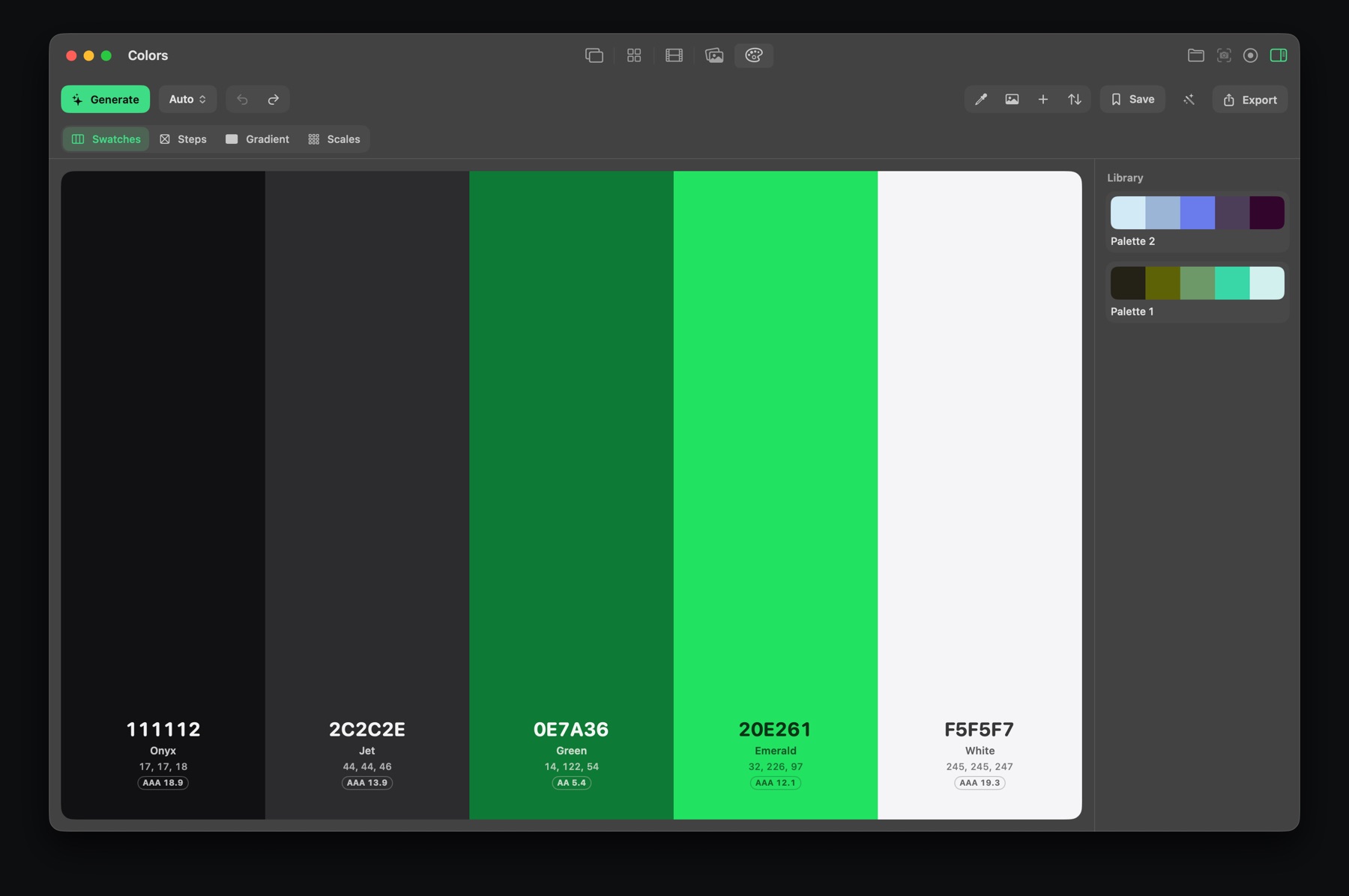
Drop an image onto Colors in Feedback, or use Send To › Colors on any screenshot. It picks out the main colors as a palette you can tweak, lock and rearrange. Press Space to generate fresh palettes around the colors you've locked.
Use it in your work
Every color shows its HEX, RGB, HSL, OKLCH and CMYK values and a contrast rating for text. Export the palette as:
- Code: HEX list, CSS variables, Sass, Tailwind config, JSON, design tokens, SwiftUI.
- Swatches: Adobe .ase (Photoshop, Illustrator, InDesign, Affinity), .gpl (GIMP, Krita) and SVG.
- Images: strips, cards, a color sheet, a poster or a 50–950 scale grid.
Colors is part of Feedback Pro, with a free 7-day trial.

Feedback for Mac
Screenshots, markup, screen recording, GIFs, storyboards, reference boards and color palettes in one small, fast app. Free to download.
Download on the Mac App StoreQuestions
How do I get the hex code of a color on my Mac screen?
Use Digital Color Meter in Utilities, or press Option-Shift-C with Feedback installed to pick a color and copy its hex code.
How do I make a color palette from a photo on a Mac?
Drop the photo onto Colors in Feedback, and it pulls out the main colors as a palette you can edit and export.