
Feedback
Capture, mark up and share what's on your screen. A small, native Mac app that opens almost instantly.
Download on the Mac App StoreFree to download · Requires macOS 15 or later
What it does
Everything you need to show someone what you mean, in one place.
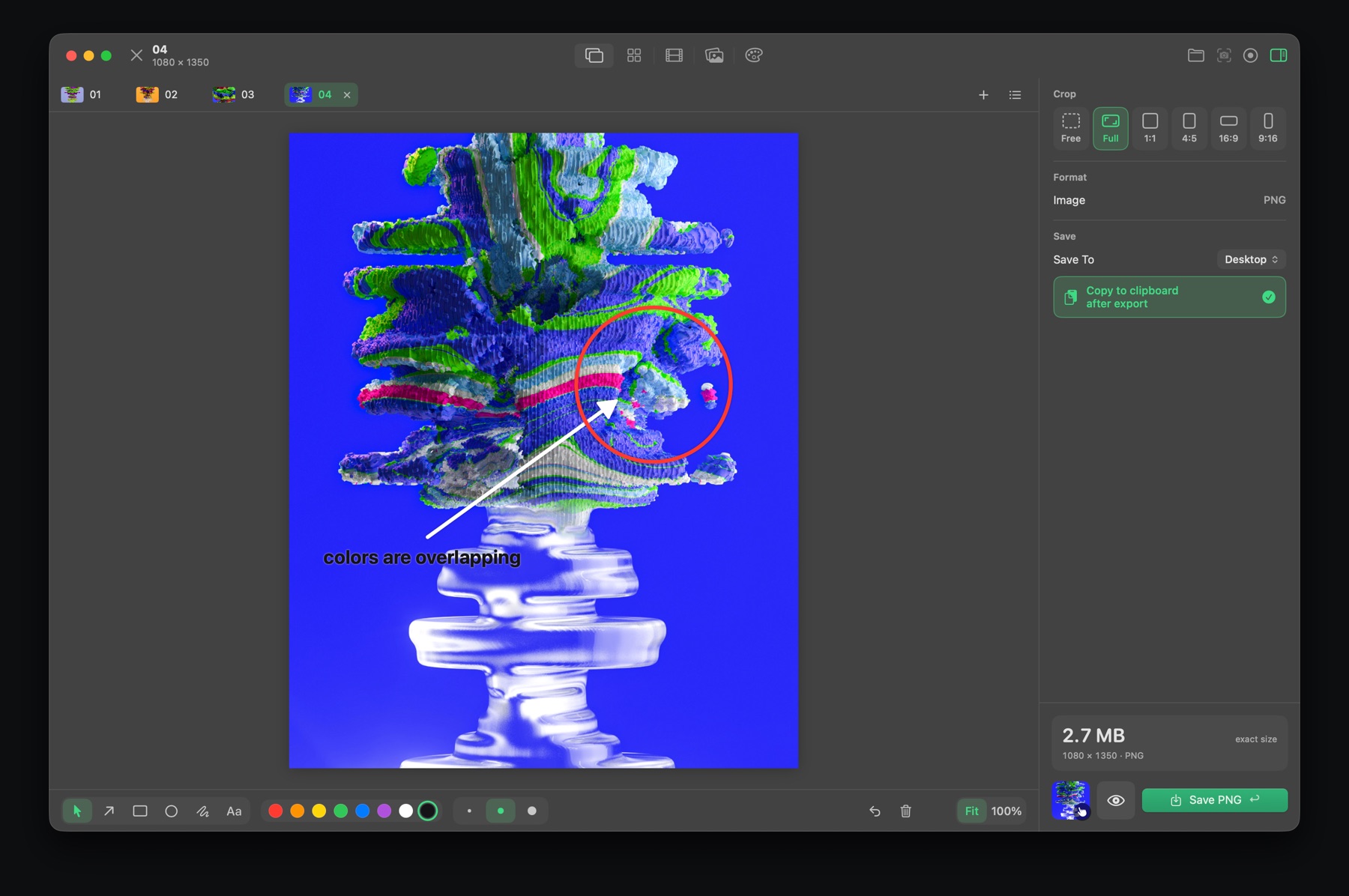
Screenshots with notes
Capture an area of the screen with a shortcut, then add arrows, boxes, circles, pen and text. Save it, or copy it straight into Slack, Mail or Figma.
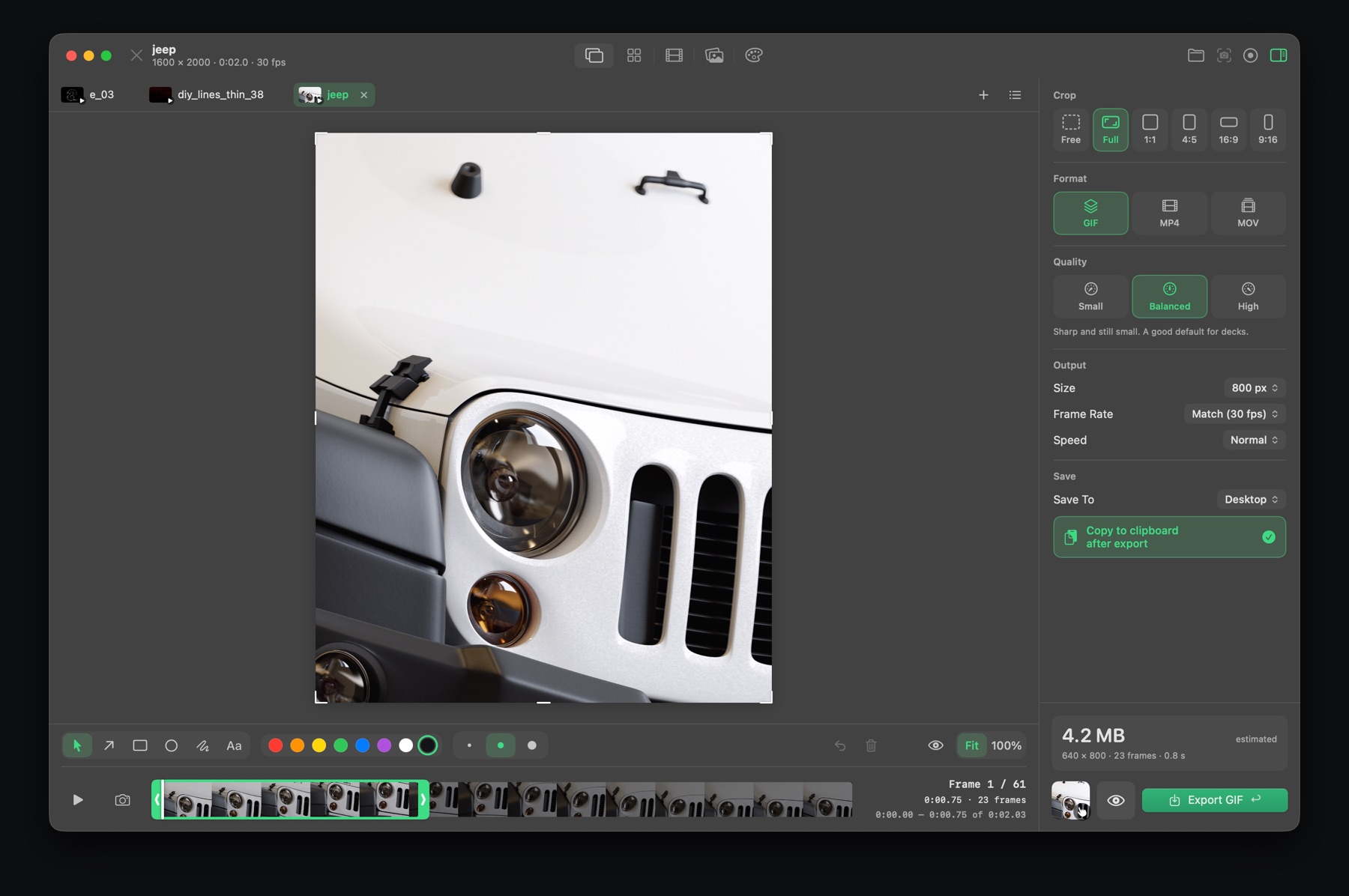
GIFs the size you need
Record your screen or open any video. Trim it, crop it to 1:1, 4:5, 16:9 or 9:16, and see the file size before you export as GIF, MP4 or ProRes. You can also right-click a video in Finder and choose Convert to GIF.
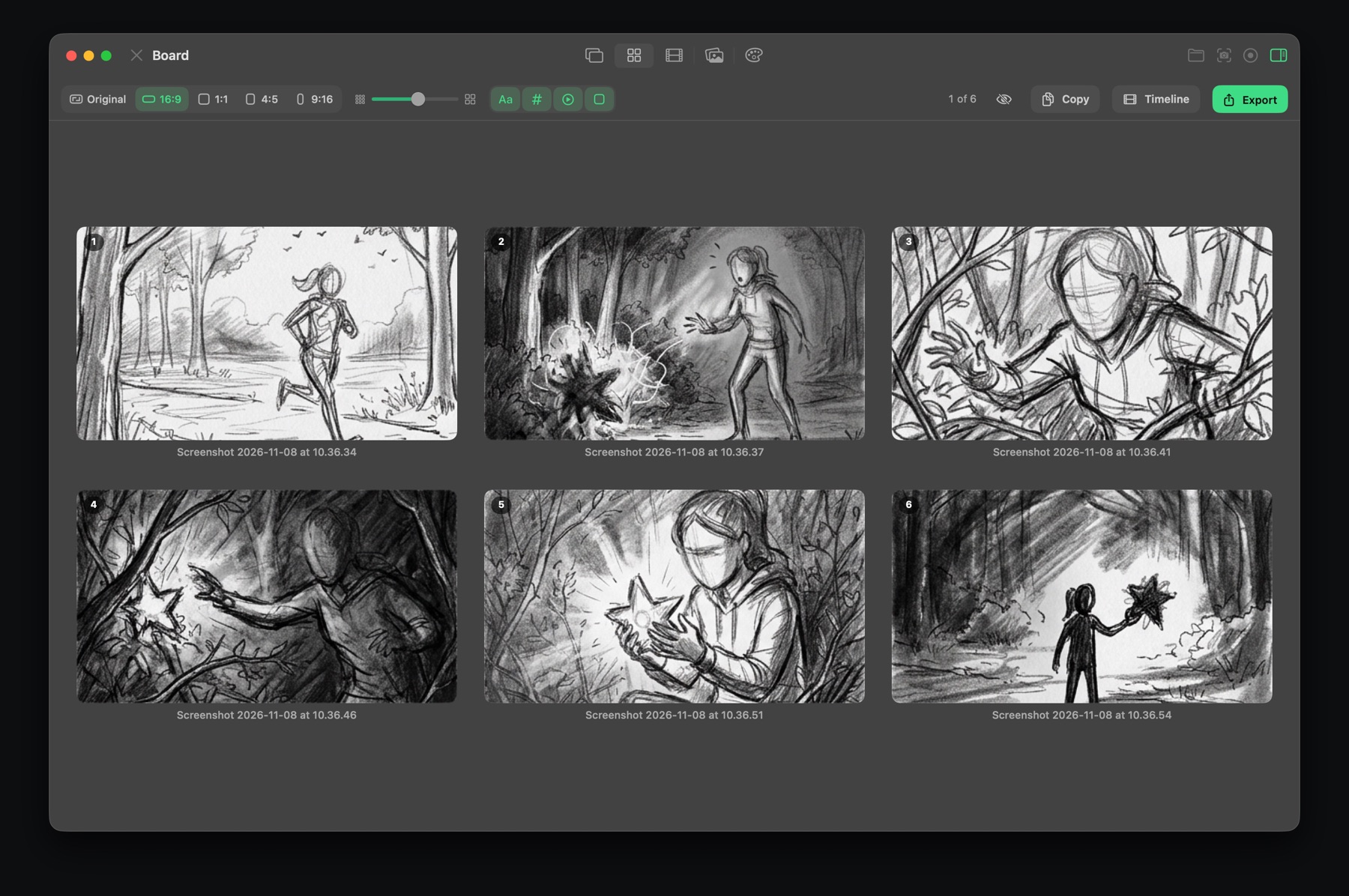
Screenshots become storyboards
Every capture becomes a numbered frame. Reorder them and export the whole board as one image: PNG, JPEG, HEIC or PDF.
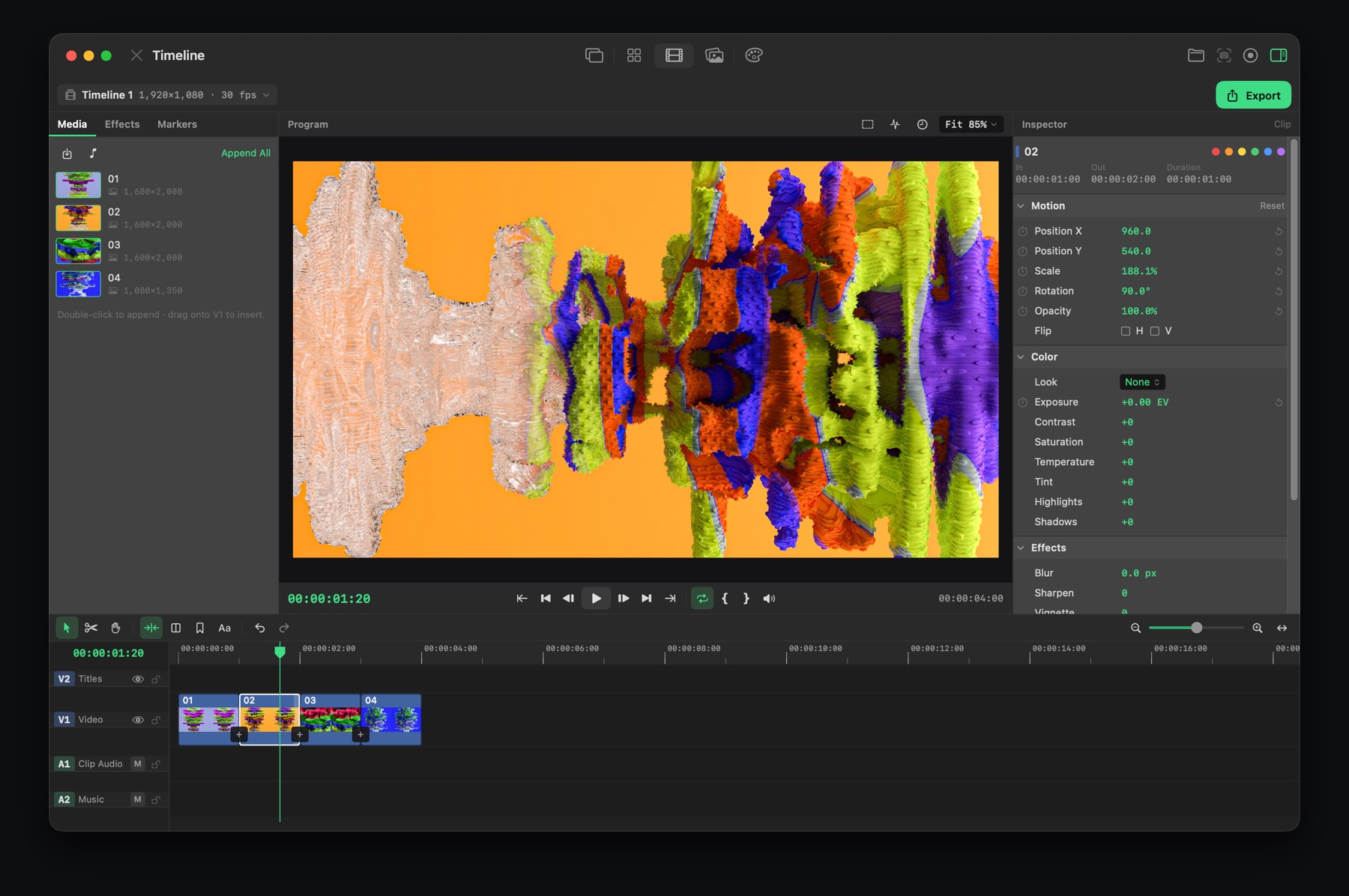
Cut animatics
Line up your shots on a timeline, add transitions, titles and music, and export a video with timecode.
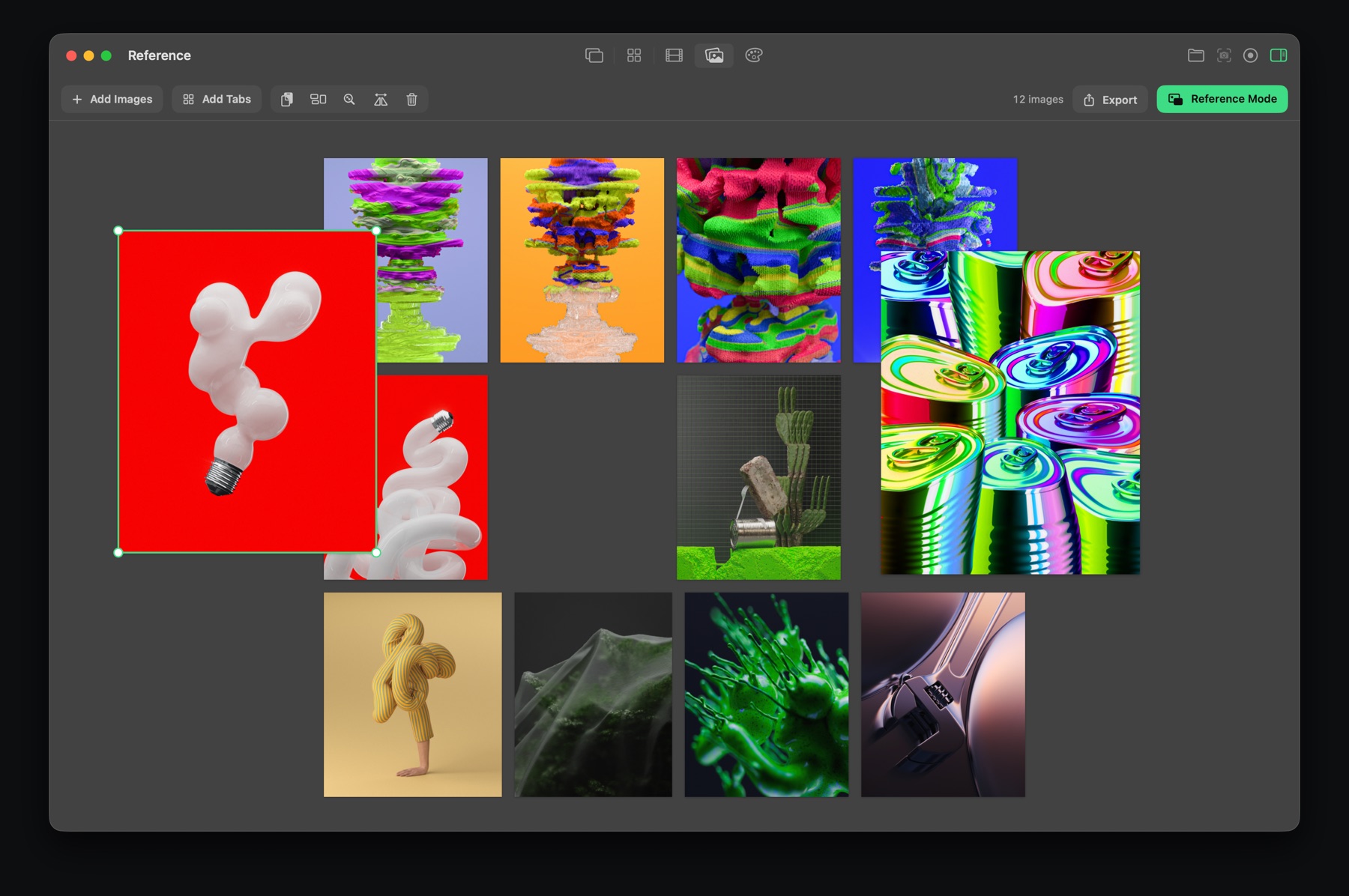
Keep references in view
Collect images on a board and float it above any app while you work. Export it as a mood board when you're done.
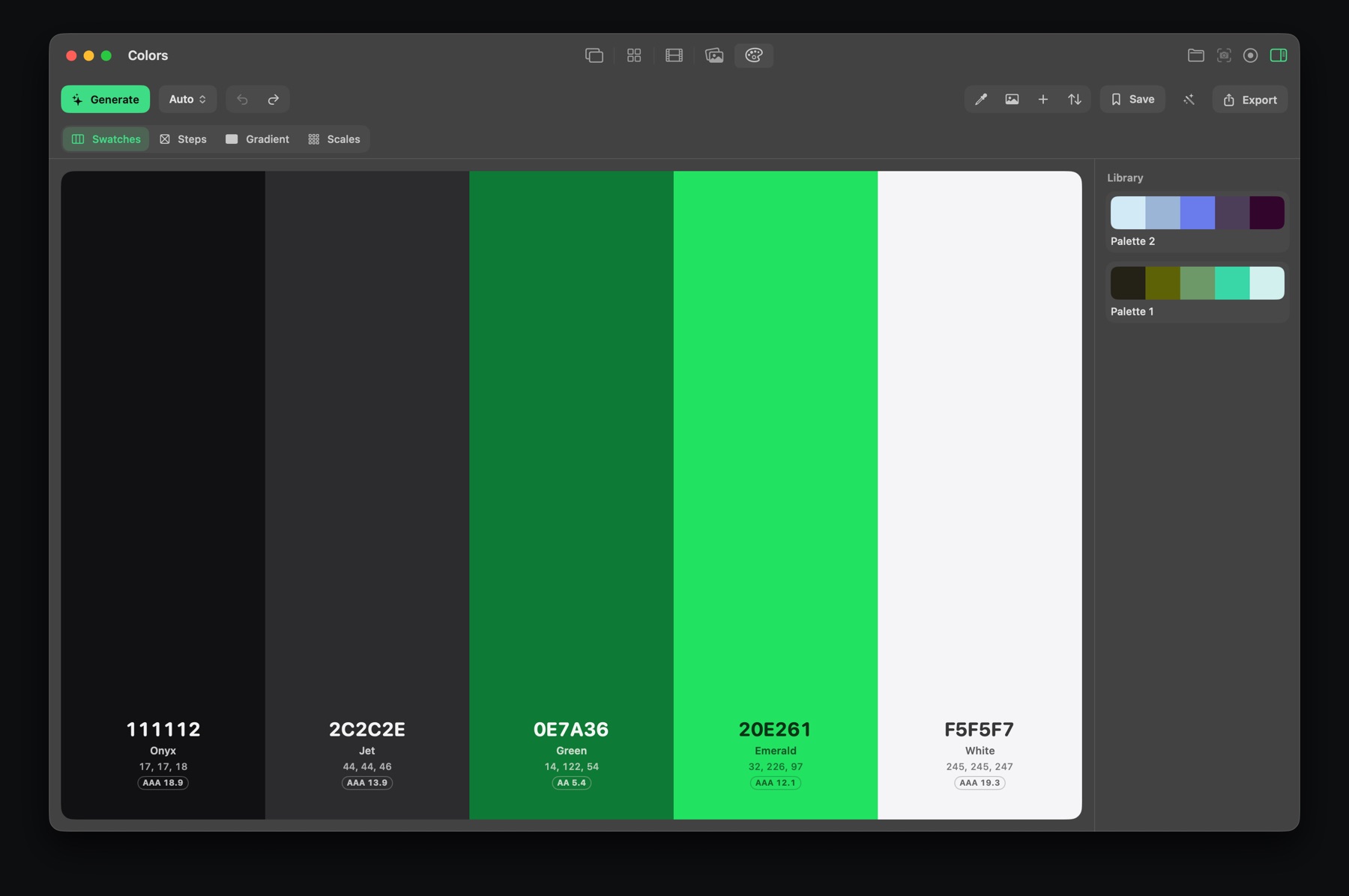
Palettes from anything
Pick colors from anywhere on screen, build palettes and export them to CSS, Tailwind, SwiftUI or Adobe swatches.
Pricing
Free to use, with one optional purchase. No subscription, no account.
Free
Screenshots, screen recording and GIF conversion, with a red pen to draw on your captures. GIFs and videos carry a small watermark.
Feedback Pro
A one-time purchase that unlocks everything: all drawing tools and colors, trimming, Board, Timeline, Reference and Colors, and no watermark.
7-day trial
Try every Pro feature for 7 days. It ends by itself and never charges you.
Support
Questions, bugs or ideas? Email [email protected] and I'll get back to you.
- Screen recording doesn't work.
- Open System Settings › Privacy & Security › Screen & System Audio Recording and turn on Feedback. If it's already on, turn it off and on again, then reopen the app.
- Where is Convert to GIF in Finder?
- Right-click a video, then choose Quick Actions › Convert to GIF.
- How do I get Pro on another Mac?
- Sign in with the same Apple Account and choose Settings › Pro › Restore.
- Can I change the shortcuts?
- Yes, in Settings › Shortcuts. The defaults are ⌥⇧S for a screenshot, ⌥⇧D to record and ⌥⇧C to pick a color.
Privacy
Feedback doesn't collect any data. There are no accounts, no analytics and no tracking. Your captures stay on your Mac unless you choose to share them. Purchases are handled by Apple.