 Feedback
How to make a storyboard on a Mac
A storyboard is a sequence of frames that shows how something plays out: a film, an ad, an animation or a product flow. Here's how to put one together quickly on a Mac.
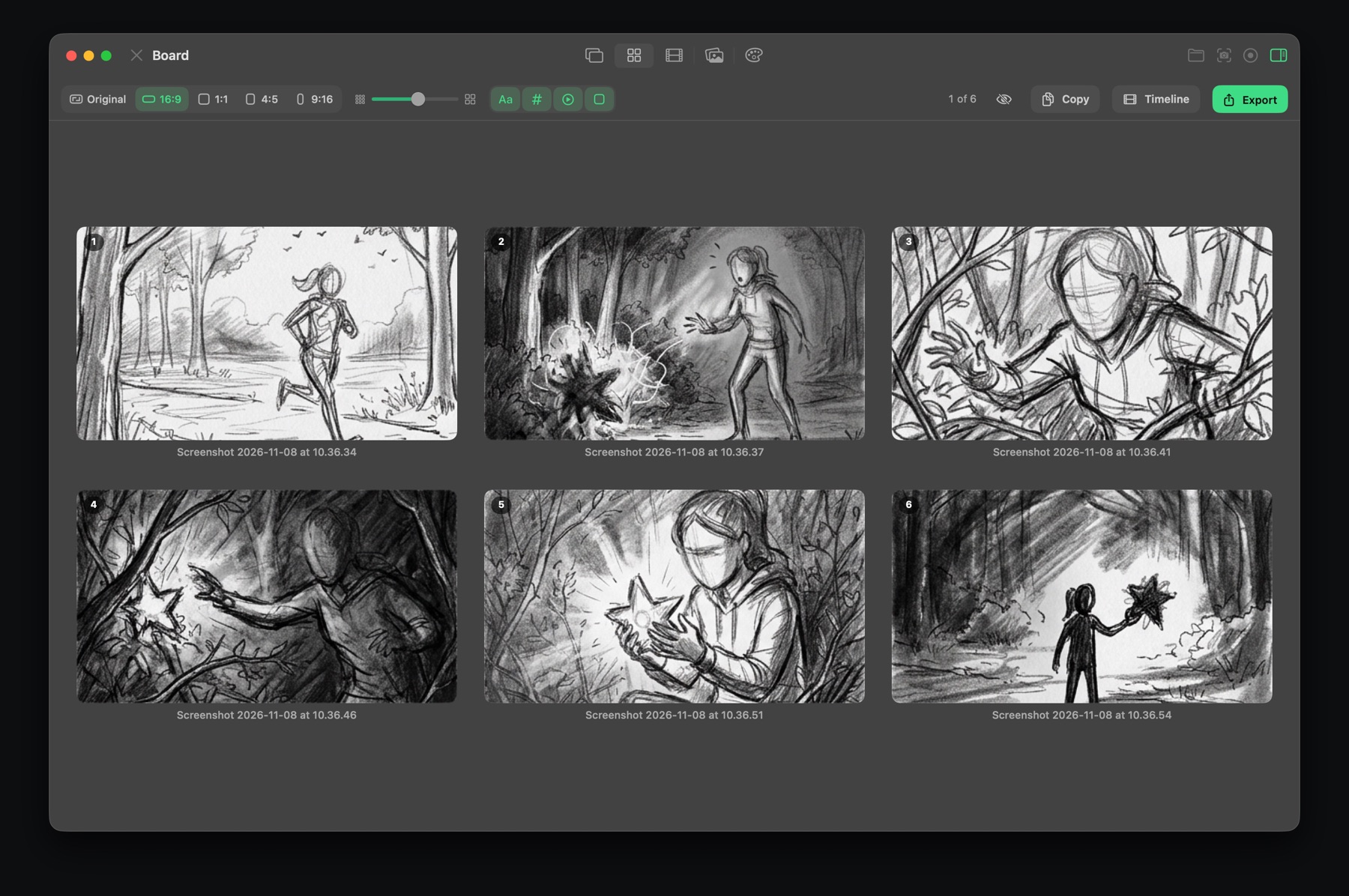
Gather your frames
Frames can be sketches, photos, screenshots of a design, or stills from a video. In Feedback, every image you open or capture becomes a tab, and every tab is a frame. You can also take a frame from a video with S.
Arrange the board
Switch to Board. Frames appear in a numbered grid:
- Drag frames to change the order. The numbers follow.
- Hide frames you don't need with H.
- Set the frame shape (16:9, 1:1, 4:5, 9:16 or original), the size, names, and a light or dark background.
Share it as one image
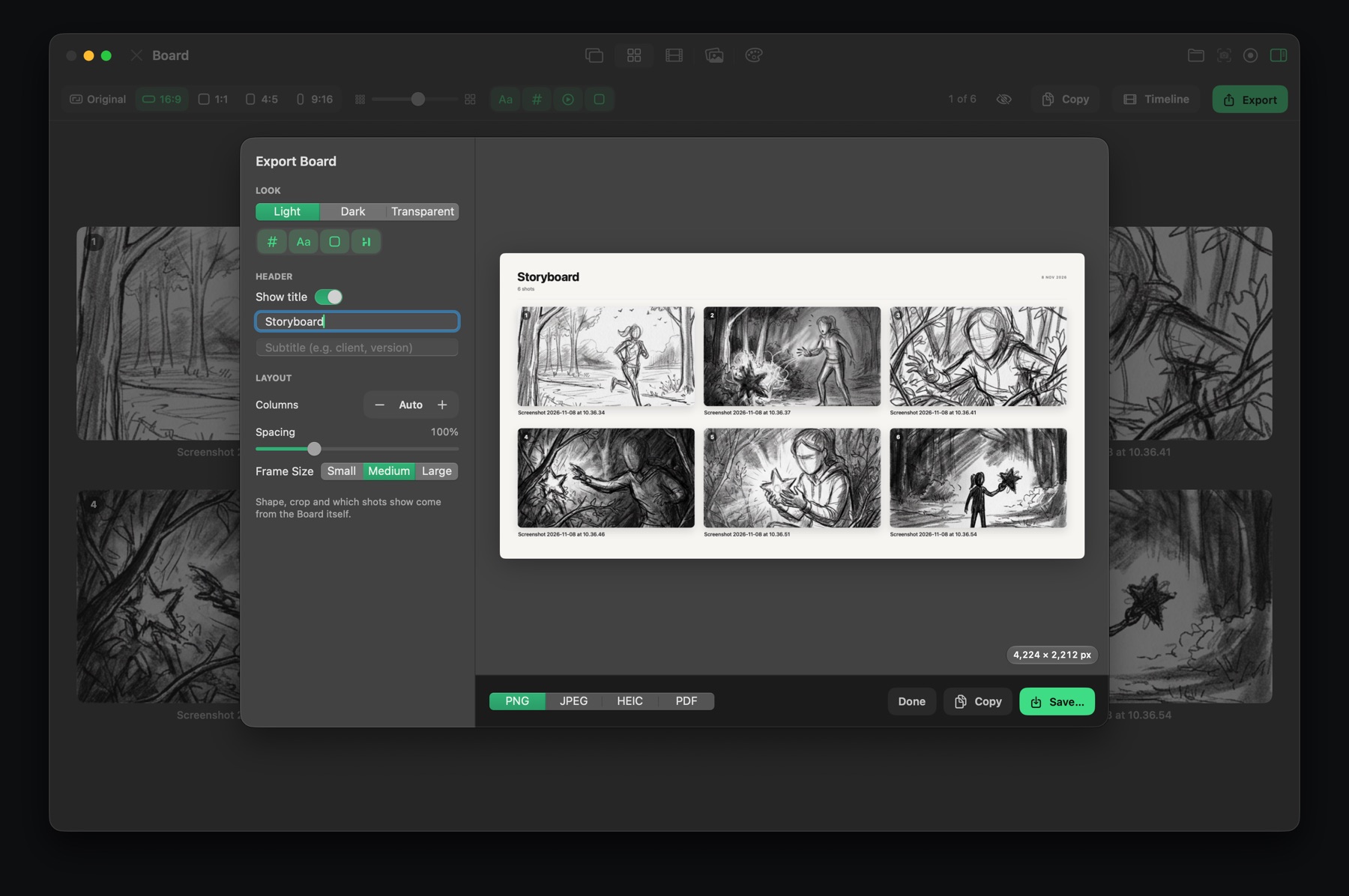
Click Export to lay out the board with a title, columns and spacing, in a light, dark or transparent look. Save it as PNG, JPEG, HEIC or PDF, or copy it.
Turn it into an animatic
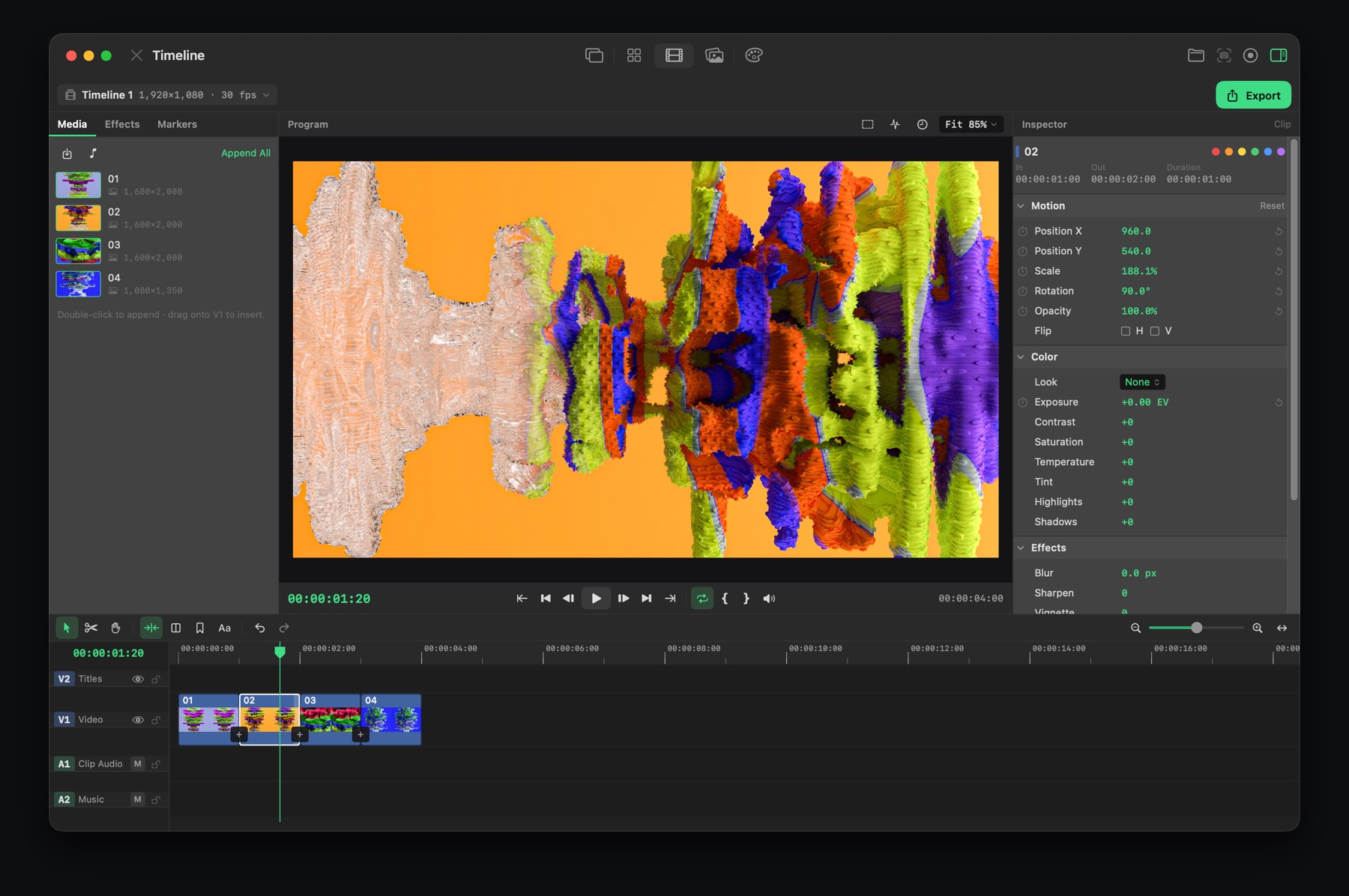
Click Timeline to put the frames back to back. Set how long each one holds, add transitions, titles and music, and export a video, with a timecode burned in if it's for review.
Board and Timeline are part of Feedback Pro, with a free 7-day trial.

Feedback for Mac
Screenshots, markup, screen recording, GIFs, storyboards, reference boards and color palettes in one small, fast app. Free to download.
Download on the Mac App StoreQuestions
What's a good storyboard app for Mac?
Feedback lets you build a numbered storyboard from any images or screenshots, export it as one image, and turn it into an animatic on a timeline.
How do I make an animatic from a storyboard?
Put the frames on a timeline, set how long each one holds, and add transitions and sound. In Feedback, click Timeline on the Board to do this.