 Feedback
How to annotate a screenshot on a Mac
Adding an arrow or a note to a screenshot makes feedback much clearer. Here are two ways to do it on a Mac.
With Markup in Preview
- Click the thumbnail that appears after taking a screenshot, or open the image in Preview.
- Click the Markup button (the pen tip) or press ⇧⌘A to show the Markup toolbar.
- Use Shapes for arrows and boxes, the Text tool for notes, and Sketch to draw.
- Close the window to save.
With Feedback
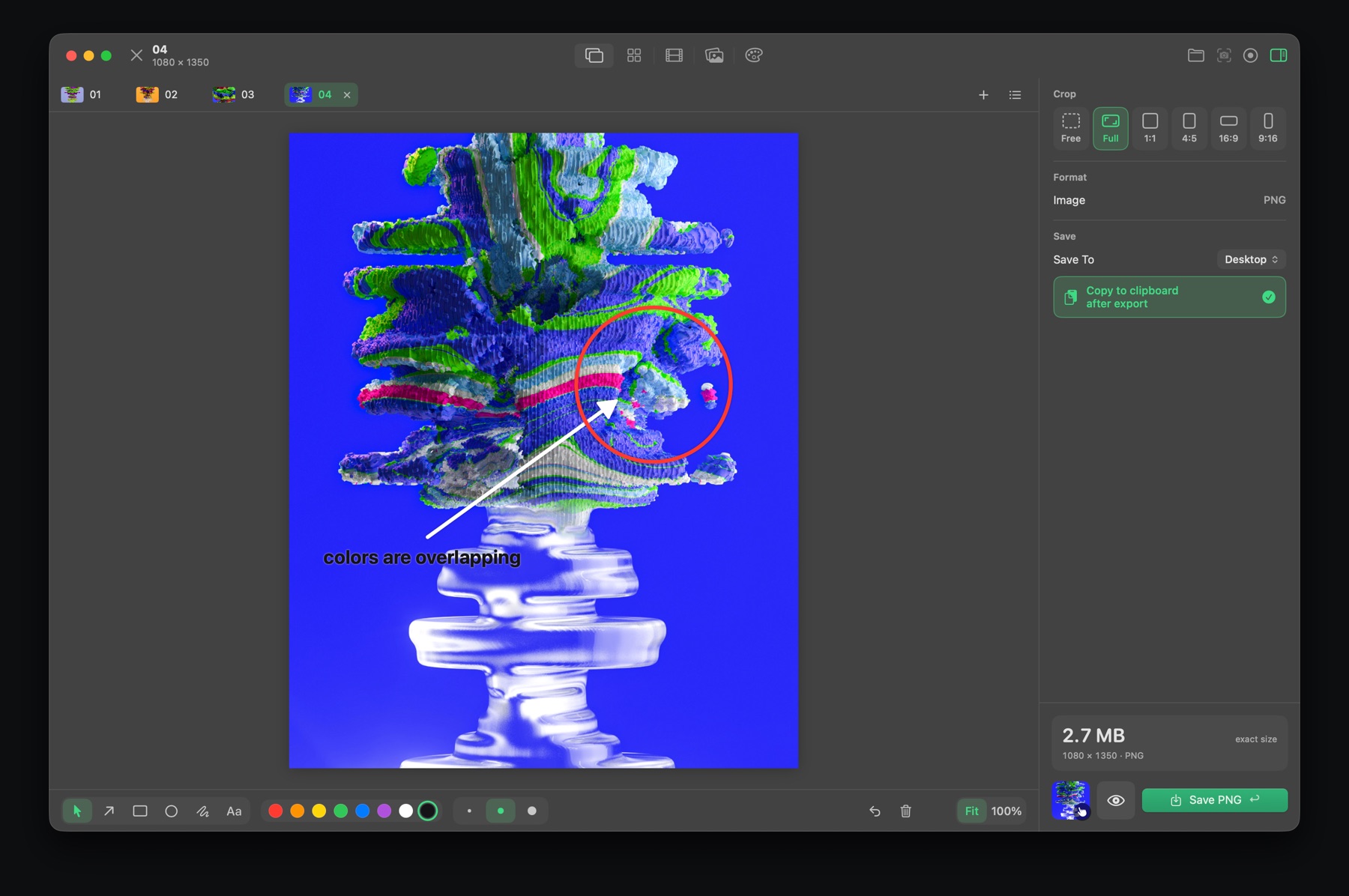
Feedback opens every capture ready to mark up, with one-letter keys for each tool:
| A | Arrow |
| R | Rectangle |
| C | Circle |
| P | Pen |
| T | Text, plain or on a background |
| V | Select and crop |
Pick from eight colors and three line sizes, crop freely or to 1:1, 4:5, 16:9 or 9:16, then press Return to save and copy it in one go. The pen in red is free; the other tools, colors and fixed crops are part of Feedback Pro, with a free 7-day trial.
Tips for clear feedback
- Use one color for problems, so they stand out.
- Circle the thing, then put the note to the side with an arrow, so you don't cover what you're talking about.
- Crop tightly. Less to look at means less to explain.

Feedback for Mac
Screenshots, markup, screen recording, GIFs, storyboards, reference boards and color palettes in one small, fast app. Free to download.
Download on the Mac App StoreQuestions
How do I draw on a screenshot on a Mac?
Open it in Preview and use the Markup toolbar (Shift-Command-A), or use an app like Feedback that opens every capture ready to mark up.
How do I add an arrow to a screenshot on a Mac?
In Preview, open Markup, click Shapes and choose the arrow. In Feedback, press A and drag.